Investigate a Change
Before you start
The audit.read permission.
1. Decide which question you are asking
Two different tools, and reaching for the wrong one wastes time:
| Question | Use |
|---|---|
| Who changed this, and when? | The audit log |
| What did it look like on that date? | Temporal history |
Most investigations need both: history establishes that the value was wrong, the audit log establishes who made it so.
2. Find the events
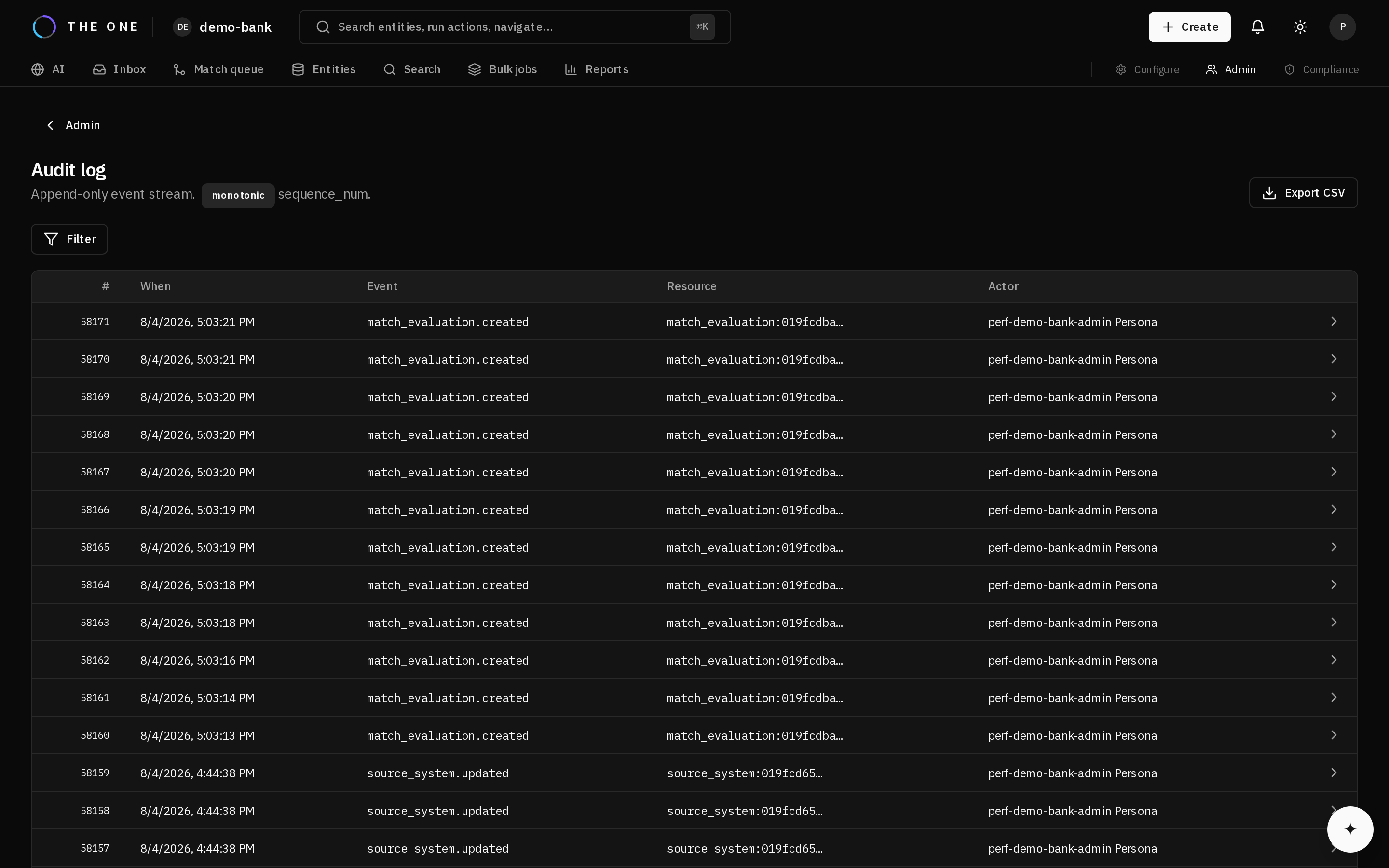 The audit log with its filter bar. Resource, actor, event type and time range narrow the search.
Filter the audit log by resource, actor, event type, and time range. Entries carry before-and-after values, so you can see the change itself rather than inferring it.
3. Reconstruct the state
 The entity's History tab reconstructs what it looked like at a point in time.
Read the record's history to see each version and the period it was current. History is gap-free and non-overlapping, so a point-in-time question has exactly one answer.
4. Follow a merge
A merge re-points many things at once. Its audit entries record the merge on the survivor as well as the absorbed record, so the survivor's history shows that it happened rather than a value appearing from nowhere.
5. Check for gaps
Entries carry a monotonic sequence number, so a removed entry leaves a visible hole.
Before reading a gap as tampering, establish whether a retention purge covers that window. Purging is a sanctioned, permissioned operation that deletes entries older than the retention window, and it produces exactly the same signal. Ordinary writes cannot modify or delete an entry — a database trigger refuses them — so a gap means either a purge or something that warrants investigation.
6. Note what you cannot see
Change values may be masked for you. Actor metadata never is.
If you need to see masked values for an investigation, that is a permission change, and one that is itself audited.